
If you are running paid acquisition campaigns on Facebook or Instagram, you are likely using Meta Lead Ads. These native forms are incredibly powerful because they keep the user on the platform, auto-fill their contact information, and drastically lower the friction required to generate an inquiry.
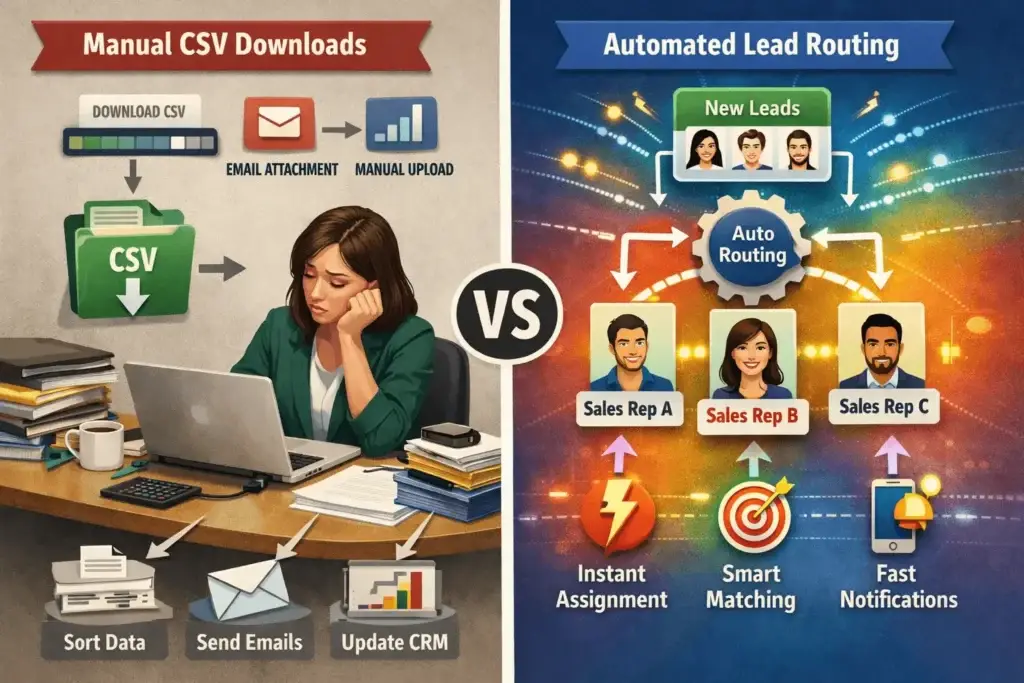
However, generating the lead is only the first ten percent of the battle. The real challenge is what happens after the user clicks submit. By default, Meta stores these leads in a hidden Leads Center deep within your Facebook Page settings. To access them, your sales team must manually log in, navigate through complex menus, and download a static CSV file.
This manual process is the fastest way to burn your advertising budget. If your marketing strategy consists of generating global leads but forcing them to wait hours for a follow-up while your team downloads a spreadsheet, you are actively losing revenue. At NEULEAD, a Revenue + Systems agency headquartered in Lekki Phase 1, Lagos, we build customer and operations systems for businesses globally. We know that speed is the ultimate currency in modern sales.
To survive in today’s highly competitive digital market, you must stop marketing and start selling. You need a system that routes data instantly. In this highly technical, step-by-step guide, we will teach you the exact framework for connecting Meta Lead Forms directly to Google Sheets automatically, ensuring your sales team never misses a follow-up.
The High Cost of Manual Lead Routing
Before we dive into the technical setup, you must understand why downloading CSV files from Meta destroys your conversion rates. This comes down to a concept known as lead decay.
Lead decay is the rapid decline in a prospect’s buying intent from the exact moment they submit their contact information. When a user fills out your Meta Lead Form, they are at the absolute peak of their interest. They have a problem, your ad promised a solution, and they want answers immediately.
Extensive sales data shows that if your team takes more than five minutes to contact a new lead, the odds of successfully qualifying that prospect drop exponentially. If you are targeting international clients across different time zones, a lead might submit a form while your local team is asleep. If they wait eight hours for a response, they have already googled a competitor and moved on.
Manual routing also creates massive internal chaos. When a CSV is downloaded and emailed to a sales team, there is zero accountability. Who is calling which lead? Has this person been contacted yet? By connecting Meta Lead Forms directly to Google Sheets automatically, you eliminate human error, create a single source of truth, and enable instant follow-up protocols.
Why Google Sheets is the Perfect Lightweight CRM
Many businesses believe they need to purchase an expensive, bloated enterprise CRM to handle their lead flow. While enterprise tools are great for massive corporations, they often present a steep learning curve for mid-sized professional service firms, clinics, and real estate developers.
Google Sheets is the perfect lightweight alternative. Almost every professional on the planet understands how to read a spreadsheet. It is entirely cloud-based, allows for real-time collaboration, and integrates flawlessly with visual automation platforms.
By building your pipeline in Google Sheets, you eliminate friction. Your team can instantly see new leads appear in real-time as rows are added. You can create columns for “Lead Status,” “Notes,” and “Assigned Rep,” turning a simple spreadsheet into a highly functional, globally accessible database that tracks your revenue pipeline from click to close.
Technical Prerequisites: What You Need Before Starting
Before you begin connecting Meta Lead Forms directly to Google Sheets automatically, you must ensure you have the correct administrative access and tools. Attempting to build this automation without the proper permissions will result in frustrating webhook errors.
Here is your prerequisite checklist:
- Meta Business Suite Access: You must have full Admin access to the Facebook Page and the associated Meta Ad Account where the Lead Forms are being generated.
- A Live Meta Lead Form: You must have an active or drafted Lead Generation form within your Meta account. The automation tool needs an existing form to read the data fields (like Name, Email, Phone Number).
- A Google Workspace Account: You need access to Google Sheets via a standard Gmail or Google Workspace account.
- An Automation Platform: You cannot natively connect Meta directly to Google Sheets without a middleman. You must create an account on a visual automation platform. At NEULEAD, we highly recommend Make (formerly Integromat) or n8n due to their flexibility and robust API connections. For this tutorial, we will use Make.
Step 1: Prepare Your Google Sheet Architecture
Automation systems are literal; they do exactly what you tell them to do. Before you route the data, you must build the destination.
Open Google Sheets and create a new, blank spreadsheet. Name it something clear, such as “Meta Ads Lead Pipeline.”
Next, you must create your header row. In Row 1, create specific columns that perfectly match the questions you are asking in your Meta Lead Form. A standard architecture looks like this:
- Column A: Date & Time
- Column B: Full Name
- Column C: Email Address
- Column D: Phone Number
- Column E: Campaign Name
- Column F: Lead Status (Dropdown: New, Contacted, Closed)
Crucial Step: You must freeze the top row (View > Freeze > 1 Row). This ensures the automation tool recognizes Row 1 as the headers and does not accidentally overwrite your column names with lead data.
Step 2: Set Up the Trigger in Make (Integromat)
Log into your Make.com account and click “Create a new scenario.” A scenario is a visual workspace where you will build your automation flow.
Click the giant plus button in the center of the screen to add your first module. Search for “Facebook Lead Ads” and select it. From the list of available actions, choose the trigger named “New Lead.” This module tells the system to actively listen 24/7 for any new form submissions.
Authenticating Your Meta Account
A configuration window will pop up asking for a Webhook. Click “Add” to create a new webhook connection. You will be prompted to authenticate your Facebook account. Click “Connect,” log into your Facebook profile, and grant Make the necessary permissions to access your Pages and Lead Ads data.
Selecting the Form
Once authenticated, select the specific Facebook Page you are running ads from. Then, select the exact Lead Form you want to track. Save the configuration.
Your trigger is now perfectly set. Make is now actively monitoring that specific form for new global leads.
Step 3: Route the Data to Google Sheets
Now that you have captured the lead data, you must push it to your database. Hover over your Facebook Lead Ads trigger module in Make, and click the “Add another module” button that appears on the right side.
Search for “Google Sheets” and select it. From the list of available actions, choose “Add a Row.”
Authenticating Google Sheets
Just as you did with Facebook, you must authenticate your Google account. Click “Add” under the connection setting, log into your Google Workspace account, and grant Make permission to edit your spreadsheets.
Selecting the Spreadsheet
Once connected, use the dropdown menus to navigate your Google Drive. Select the “Meta Ads Lead Pipeline” spreadsheet you created in Step 1, and select the specific worksheet (usually “Sheet1”).
Because you froze the header row in Step 1, Make will automatically read your columns (Date & Time, Full Name, Email, etc.) and present them as empty fields waiting to be filled.
Step 4: Map the Form Fields (Data Parsing)
This is the most critical step in connecting Meta Lead Forms directly to Google Sheets automatically. You must map the data variables from Facebook into the correct Google Sheets columns.
When you click into the empty field for “Full Name” in your Google Sheets module, a secondary window will pop up showing all the data points captured by your Facebook Lead Ads trigger. This is called mapping.
- Click into the “Full Name” field and select the
full_namevariable from Facebook. - Click into the “Email Address” field and select the
emailvariable. - Click into the “Phone Number” field and select the
phone_numbervariable. - Click into the “Campaign Name” field and select the
campaign_namevariable. - For the “Date & Time” column, navigate to the Make date/time variables (the calendar icon) and select
now. This will timestamp the exact moment the lead hit your CRM.
Once every column is mapped with the correct variable, click “OK” to save the module.
Step 5: Test and Publish the Workflow
Before sending live traffic to your ads, you must test the system to ensure the data routes correctly.
At the bottom left of your Make scenario, click the “Run Once” button. The system is now waiting for a test lead. Go to the Facebook Lead Ads Testing Tool (External Link). Select your Page and your Form, and click “Create Lead.”
If your setup is correct, you will see a green checkmark appear over both modules in Make. Immediately open your Google Sheet. You should see a new row automatically populated with the test data you just submitted.
If the test is successful, flip the scheduling toggle at the bottom left of Make from “Off” to “On.” Your automated CRM pipeline is now live and will route leads instantaneously 24/7.
Advanced Routing: Adding Telegram & WhatsApp Alerts
Simply connecting Meta Lead Forms directly to Google Sheets automatically is fantastic for database management, but it still requires your sales team to actively monitor the spreadsheet. To completely eradicate lead decay, you must force instant accountability.
At NEULEAD, we build advanced routing paths by adding messaging escalations to this exact workflow.
In your Make scenario, you can add a third module right after Google Sheets. Search for “Telegram” and select “Send a Text Message.” You can configure this node to push an instant alert to a dedicated Sales Group Chat the exact second the row is added to Google Sheets.
The message can be formatted to include the lead’s name, requested service, and a direct wa.me/ click-to-chat link. Your sales rep can tap the link on their phone and instantly start a WhatsApp conversation with the prospect in under ten seconds, drastically improving your global close rates.
Common Errors and Troubleshooting
When building technical integrations, things occasionally break. Here are the most common errors you will encounter when connecting Meta Lead Forms directly to Google Sheets automatically, and exactly how to fix them.
Error 400: Expired Access Tokens
For security reasons, Meta occasionally revokes API access tokens if your password changes or if the connection remains idle for too long. If your Make scenario suddenly stops working and throws a “400 OAuth Error,” simply open the Facebook Lead Ads module, click “Reauthorize connection,” and log back into Facebook to refresh the token.
Missing Data Fields
Sometimes, a lead will populate in your Google Sheet, but the phone number or email field will be blank. This usually happens because the user did not have that specific information attached to their Facebook profile, and the form did not force them to manually type it. To fix this, edit your Meta Lead Form settings to make the phone number a “Required” field with “High Intent” verification.
Google Sheets Rate Limits
If you are generating thousands of leads per minute, Google Sheets may throw a “Rate Limit Exceeded” error. Google restricts the number of API writes you can perform per second. If you are operating at massive enterprise volume, we recommend upgrading your destination node from Google Sheets to a more robust database like Airtable or PostgreSQL.
Real Results: How Automated Systems Drive Revenue
We do not optimize vibes; we optimize revenue. Sharing undeniable evidence of how results were achieved is the ultimate way to prove expertise. Here are actual, measurable results we’ve achieved for our clients by abandoning manual CSV downloads and implementing automated systems globally.
Admiralty Events: 87% Increase in Qualified Leads
Nnenna at Admiralty Events was running ads but struggling with low-quality inquiries and chaotic follow-ups. By tightening their targeting and replacing their manual processes with tracking-first automation, we integrated an instant routing system.
The result was an 87% increase in qualified leads in just 6 weeks. We ensured every lead was instantly assigned, completely stopping lead decay and maximizing their ad spend ROI.
Dropping CPL from ₦6,800 to ₦1,200
Another client was suffering from a broken conversion path. They were driving traffic, but leads were forced to wait hours for a reply, resulting in a devastating Cost Per Lead (CPL) of ₦6,800.
We stepped in, rebuilt their landing page, verified their GA4 events, and implemented a Make/n8n pipeline to route leads instantly to Google Sheets and Telegram. Following these structural and tracking fixes, their team’s response time dropped to under two minutes, and their CPL dropped to a highly profitable ₦1,200.
Stopping Lead Loss with Operations Systems
For an international client overwhelmed by scattered lead sources across different time zones, we built a comprehensive automated follow-up system. We completely bypassed manual entry. This system saved their operations team 6 hours per week in manual data entry, increased lead capture by 41%, and reduced missed hot leads by a staggering 52% in just 3 weeks.
The NEULEAD Customer Engine™ (The “Multiply” Cluster)
Building an integration between Meta and Google Sheets is just one specific component of a holistic business architecture. Most brands do not need more random “content” or generic marketing; they need a system that sells.
At NEULEAD, we categorize our services into a proprietary four-step framework known as the Customer Engine™. Operations automation falls into the critical final cluster.
1. Capture (Conversion Websites)
We build high-converting WordPress websites and landing pages focused entirely on speed, clarity, and action. Your digital presence must be a “money page.” We ensure mobile-first optimization so that global traffic seamlessly converts into trackable leads.
2. Attract (Paid Ads & SEO)
Once the capture mechanism is flawless, we turn on the traffic. We manage Paid Ads across Meta, Google, X, and TikTok, alongside rigorous Local and LLM SEO Services. We ensure your brand ranks for buyer-intent searches locally and internationally.
3. Convert (Tracking-First Retargeting)
We do not rely on guesswork. We verify tracking through Google Analytics 4 (GA4) and pixel events so your business decisions are based on hard, verifiable data. By deploying aggressive retargeting strategies, we recover warm visitors who clicked your links but did not instantly convert.
4. Multiply (Automation & CRM)
This is where we completely stop lead loss. We build CRM pipelines and team alerts using Make/n8n so opportunities never slip through. By connecting Meta Lead Forms directly to Google Sheets automatically and adding escalation alerts, we multiply the effectiveness of your sales team and drastically improve your close rate.
Avoid Natural Language Processing (NLP) Bottlenecks
While the technical setup is critical, how you manage the content within your ads and landing pages is equally important. Search engines and AI models rely heavily on Natural Language Processing (NLP) to understand what your business does.
When you write naturally, avoid search engine-first spam, and clearly demonstrate firsthand expertise, users are far more likely to click your Meta ads in the first place. You must explicitly state who you are, how your product works, and why it benefits the user. A flawless Google Sheets integration cannot save a pipeline if the ad creative itself fails to build trust with the consumer.
Stop Marketing. Start Selling.
If you are tired of paying for impressions, likes, and vanity metrics while your sales pipeline leaks high-quality leads due to manual CSV downloads, it is time to upgrade your infrastructure. You do not need another generic marketing campaign. You need a unified system that connects traffic, conversion, follow-up, and operations seamlessly.
At NEULEAD, we build the customer and operations systems that modern businesses need to thrive globally. We do not use templates, generic strategies, or fluff. We find the leak, build and launch the priority fix, and then optimize and scale what is working. If you sell something real, we can build the system.
Are you ready to stop losing leads to slow, manual follow-ups? We don’t generate leads without building the follow-up systems that close them.
Request a Free Discovery Call Today and let NEULEAD transform your manual processes into a predictable, scalable revenue machine powered by elite automation integrations. Let’s multiply your pipeline together.